Sales Period and Planning Days
By default, Smart Reorder bases its recommendations on your recent sales (the last 30, 60 and 90 days) and orders enough stock to last until your next order arrives (the supplier's lead time + order cycle). That works well when your sales are steady.
But many shops don't sell the same amount all year. If you're about to enter a busy season, a promotion or a slow month, your last 90 days don't tell the app much about the weeks ahead. This page explains two options that let you tell Smart Reorder what to expect:
- Sales period: which past sales the app should use to work out each product's sales speed. Keep Recent sales, or pick a Custom period, for example the same weeks last year.
- Planning days (Order enough stock for): how many days of sales each order should cover. Keep the Default (lead time + order cycle of each supplier), or choose the next X days.
You can use either option on its own, or both together.
Available on the Ultimate plan, like the rest of Smart Reorder. The options apply to your whole shop: every product is calculated with the same sales period and planning days.
Where to find it
- Open Smart Reorder in the main menu.
- Above the summary cards, the line Recommendations based on: shows what the current recommendations use, for example:
- Recent sales (last 30/60/90 days) · Plan: lead time + order cycle (the default)
- Sales from 2025-11-01 to 2025-12-31 · adjusted +10% · Plan: next 60 days
- Click Change next to it. The Sales period window opens.


Part 1: Choose the sales period
Recent sales (last 30/60/90 days)
This is the default and how Smart Reorder has always worked. The sales speed is a weighted average of the last 30, 60 and 90 days, leaving out days the product was out of stock (see How recommendations are calculated). Choose it when your sales are steady, or to go back to normal after a season.
Custom period
Pick a past period that looks like the weeks you're ordering for. Smart Reorder then uses how fast each product sold during that period, instead of in the last 90 days.
Good examples:
| Your situation | Period to pick |
|---|---|
| Black Friday / Christmas is coming | The same weeks last year, for example Nov 1 to Dec 31, 2025 |
| Summer is your high season and it's spring now | Last summer, for example Jun 1 to Aug 31, 2025 |
| A big promotion is planned | The period of your last similar promotion |
| You've just come out of a busy season | Recent sales again, or a recent quiet period |
How to fill it in:
- Select Custom period.
- Pick the start and end date. Both days are included. The dates follow your store's time zone.
- Optional: type a percentage in Adjust sales by (%) (see below).
- Click Save.

Rules for the dates:
- The period must be at least 7 days and at most 365 days long.
- It must end before today: yesterday is the latest end date, because today's sales aren't complete yet.
- It can't start before your sales history: the window shows Sales history available from (date). Smart Reorder keeps about 850 days (2 years and 4 months) of sales.
- Right after you install the app, the older sales history is still being loaded. The window then shows Older sales history is still loading. Periods before (date) are not available yet. Come back later to pick an older period.
Adjust sales by (%)
Use it when you expect the coming weeks to sell more or less than the period you picked. The sales speed of every product is multiplied by it:
- +10 = you expect 10% more sales than in that period (sales speed × 1.10)
- −20 = you expect 20% less (sales speed × 0.80)
- Empty or 0 = the same as in that period
Allowed values go from −90 to +300. Above 50% either way, the window shows This is a large adjustment. Check it before ordering. It's only a reminder: you can still save.
Example. A product sold 3 a day last December. Your shop has grown about 25% since then, so you enter +25: the app plans for 3 × 1.25 = 3.75 a day.
When the period you pick ended about a year ago (300 days or more), the window can show a line like Your sales in the last 90 days are +18% vs the same 90 days last year (products that sold last year). Click Use to put that number in the box.
How it's worked out: the app takes the products that sold in the same 90 days last year, and compares how many units they sold then with how many they sold in the last 90 days. Products added since then don't count, so a bigger catalog doesn't inflate the number. The suggestion only shows when there's enough data (at least 30 products and 100 units sold last year), and it's updated once a day.
It's only a suggestion. If you know a product line is stopping, or a supplier is late, adjust it yourself.
Use the percentage for the change between that period and now. If the period you picked is recent (for example last month), it already reflects your current size, and the suggestion isn't shown.
Part 2: Choose how many days to plan for
Under Order enough stock for:
Default: lead time + order cycle of each supplier
This is how Smart Reorder has always worked. Each order covers the days until the goods arrive (lead time) plus the days until your next order with that supplier (order cycle), plus your safety stock. Each supplier uses its own lead time and order cycle.
The next X days (from today)
Enter a number of days from 7 to 365. Each product's order then covers X days of sales from today, plus your safety stock, whatever the supplier's lead time and order cycle.
Choose it when you think in calendar terms rather than order cycles, for example:
- "I want stock for the whole holiday season, 60 days."
- "Our warehouse closes for 3 weeks in August, and we won't order during that time."
- "We fill one container every quarter: 90 days."
Example. A product sells 5 a day, your safety stock is 7 days, and you have 100 in stock.
| Default (lead time 10 + order cycle 14) | Next 60 days | |
|---|---|---|
| Stock needed | 5 × (10 + 14) + 5 × 7 = 155 | 5 × 60 + 5 × 7 = 335 |
| Status | Healthy (100 is above the reorder point of 85) | Recommended (100 is less than 335) |
| Recommended qty | — | 335 − 100 = 235 |
So a product that's fine for your usual rhythm can need ordering when you plan for a longer period.
If a supplier needs X days or more to deliver, goods ordered today arrive after your plan ends. The window shows Products whose supplier lead time is this long or longer will arrive after your plan., and those products show Arrives after your X-day plan in the Lead time column. Ordering them now won't prevent running out during your plan.
Your max stock (Inventory > Stock In Locations) is still a ceiling, and your min stock a floor. If the max stock is lower than what the plan needs, the product shows Stock limit: ~N of X days in the Status column: the target stock only lasts about N days. Raise the max stock if you want to cover the whole plan.
Example: 5 a day, safety stock 35 units, max stock 100, plan 60 days. The plan needs 335, but the target is capped at 100. After the safety stock, 100 − 35 = 65 units last 65 ÷ 5 = 13 days: Stock limit: ~13 of 60 days.
The line under the options
At the bottom of the window, a sentence reminds you what the app assumes, for example: We assume your daily sales over the next 44 days (lead time + order cycle) will be like the period you choose.
If the period you picked is shorter than half of the days your order needs to cover, the window also warns: This period is shorter than the 44 days your order needs to cover. If the coming weeks will not all be this busy, choose a longer period or lower the adjustment.

Why it matters: if you pick only the 7 busiest days of Black Friday week and plan for 60 days, the app assumes every one of those 60 days will sell like Black Friday, and you'd overstock. Pick a period about as long as your plan, or lower the adjustment.
What happens when you click Save
- Your choice is saved for the whole shop, and the recommendations are recalculated right away.
- For most shops, it takes a few seconds and the page reloads.
- For a large catalog, a blue banner shows the progress, for example Recalculating with Sales from 2025-11-01 to 2025-12-31 · Plan: next 60 days: 4,000 / 12,000 products, about 2 min left.
- The table keeps showing the previous results until the new ones are ready. The banner reminds you: The table below still shows the previous results (…). It refreshes automatically when done.
- Keep the page open and it calculates as fast as possible, then reloads by itself.
- You can also leave the page: The calculation continues in the background, but it may take longer. When you come back, the banner shows again if it isn't finished.
- When it's done, the Recommendations based on: line shows your new choice.
Good to know:
- Clicking Save without changing anything closes the window and doesn't recalculate.
- Wait a few seconds between two changes. If you save again too quickly, the window says Please wait a few seconds before changing the sales period again.
- While purchase orders are being created from Smart Reorder (in another tab, for example), you can't change the sales period: Purchase orders are being created from the current recommendations. Please try again in a moment.
- Your choice stays until you change it. Automatic recalculations (every 6 hours) and Recalculate keep using it. To go back to normal, open the window again and choose Recent sales and Default.
Reading the results
When the current results use a custom period, the page shows extra information so you can compare with recent sales.
Under the summary cards
With recent sales instead: 12 need to order, 30 recommended. This is what the Need to order and Recommended cards would show with Recent sales. A big difference means the period you picked is very different from now, so check it's what you meant.

In the Avg/day column
Under each product's sales speed, a small line tells you where the number comes from:
| Line | Meaning |
|---|---|
| Recent sales: 1.20/day | The product's speed based on the period is shown above. This is its speed with recent sales, for comparison. |
| Not sold in that period, recent sales used | The product wasn't on sale yet during the period (its first sale came later), so its recent sales speed is used instead. The adjustment percentage isn't applied to it. |
| No sales in that period · sells 0.80/day now (orange) | The product sold nothing during the period, but it sells now. See Check: no sales in period below. |

Check: no sales in period
Some products sold nothing during the period you picked, even though they sell now (at least 3 units in the last 90 days). Maybe it's a seasonal product that really doesn't sell then, which is correct. Or maybe it was out of stock, hidden or not on your store yet during that period, which is misleading.
The app can't always tell which one it is (the stock history may not go back that far), so it doesn't guess:
- The recommendation follows the period (usually No sales, so no order).
- A Check: no sales in period card shows how many such products there are. Click it to list only those products (the status filters are unticked so none are hidden). Click a status card to go back to the normal list.
- In the Recommended qty column, Based on recent sales: N tells you how much the app would recommend with recent sales. The box is not filled in for you: if you think the product will sell, type the quantity yourself and tick the product.
In the Status and Lead time columns
- Stock limit: ~13 of 60 days (Status): your max stock stops the target from covering your whole plan. See the caution box in Part 2.
- Arrives after your 60-day plan (Lead time): the supplier delivers after your plan ends.
In the Why? window
Why? explains the numbers for the period you picked, for example:
- Sales speed is based on Sales from 2025-11-01 to 2025-12-31: 120 sold over 60 counted days = 2.00 per day.
- With your +10% adjustment: 2.20 per day.
- Based on recent sales (last 30/60/90 days) it would be 1.40/day.
- Stock needed for your plan = 2.20/day × 60 planned days + 15.4 safety stock = 147.4.
The facts table at the bottom adds Sold in selected period and Days counted.
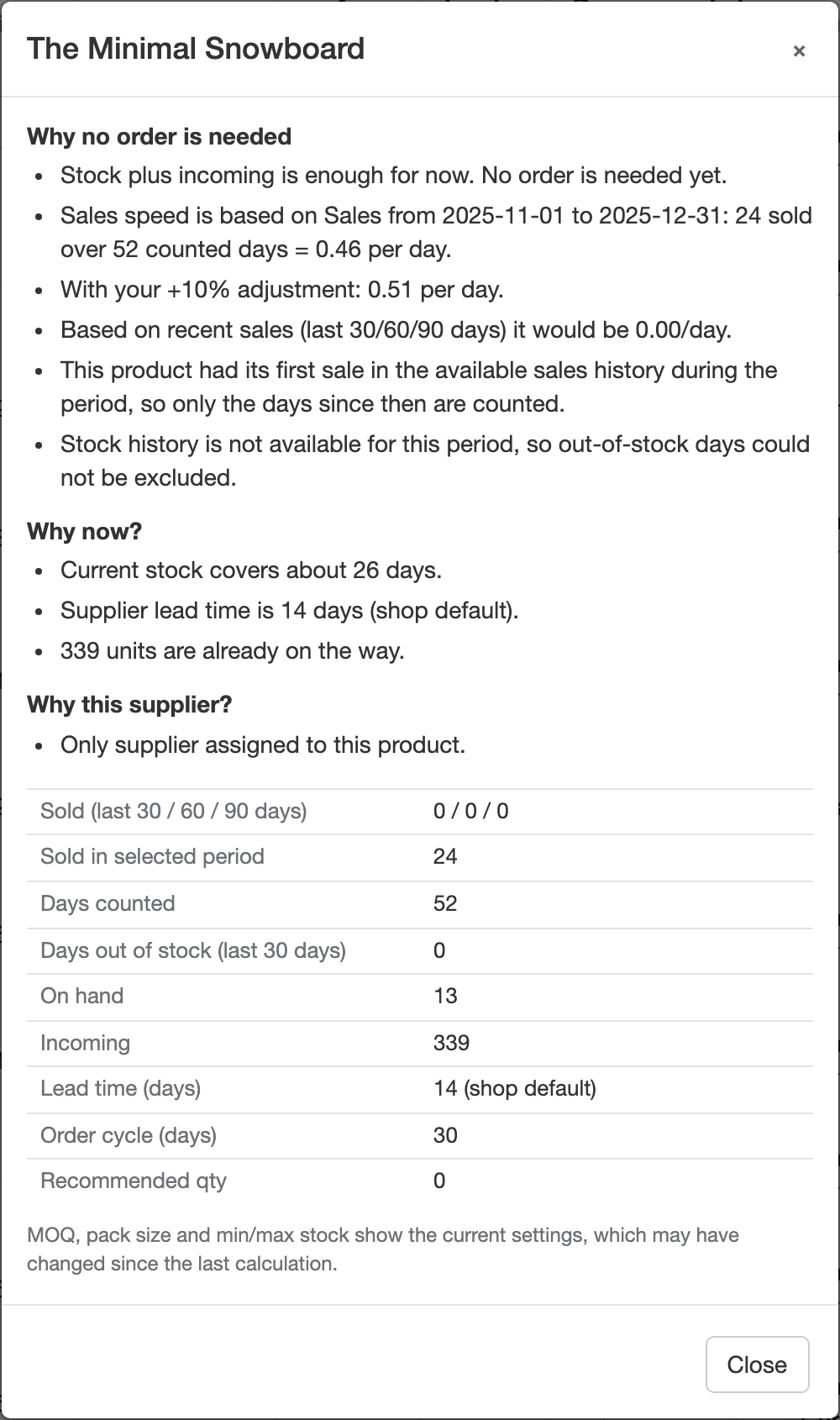 See Why? explanations.
How out-of-stock days are handled
As with recent sales, days a product was out of stock during the period are left out, so a product that ran out doesn't look like a slow seller. The app only knows a product's stock from the day it started taking nightly stock snapshots for your shop (the window shows Stock history starts on (date)).
- For a period before that date (for example last year, if you installed the app recently), out-of-stock days can't be left out. Under the Recommendations based on: line, the page shows Stock history is not available for part of this period, so out-of-stock days there could not be excluded.
- If a product was often out of stock during that period, its speed may come out lower than it really was. Use Adjust sales by (%) or edit its quantity.
Products that started selling during the period
If a product's first sale (in the app's sales history) falls inside the period, the app only counts the days from that first sale. A product launched on Dec 10 isn't treated as if it sold nothing from Nov 1 to Dec 9.
Example. Period Nov 1 to Dec 31 (61 days). A product first sold on Dec 2 and sold 60 units by Dec 31: speed = 60 ÷ 30 days = 2.0 per day, not 60 ÷ 61 ≈ 1.0.
Messages you may see
When you save:
| Message | What to do |
|---|---|
| The sales period must end before today. | Pick yesterday or earlier as the end date. |
| The sales period must be at least 7 days. | Make the period longer. |
| The sales period can be at most 365 days. | Make the period shorter. |
| Sales history for this period is not fully loaded yet. | Pick a later start date (see Sales history available from in the window), or come back when the older history has loaded. |
| Please enter a valid start and end date. | Fill in both dates, with the start before the end. |
| The adjustment must be between -90% and +300%. | Change the percentage. |
| Planning days must be between 7 and 365. | Change the number of days. |
| Please wait a few seconds before changing the sales period again. | Wait about 10 seconds and save again. |
On the page:
| Message | Meaning |
|---|---|
| The selected sales period could not be used: … Showing recommendations from recent sales. | Your saved period became unusable (for example the sales history was reset). The app uses recent sales until you pick another period. Your planning days still apply. |
| Recalculating with … / Recalculating recommendations: | A recalculation is running. The table shows the previous results until it's done. |
Creating purchase orders
Creating purchase orders works as usual (see Create purchase orders from Smart Reorder). Two things to know:
- If you click Create PO while the recommendations are being recalculated, the app asks first: Recommendations are still being recalculated. The quantities shown are from the previous calculation. Create purchase orders anyway?
- The history of each new purchase order records what the recommendations were based on, for example Sales from 2025-11-01 to 2025-12-31 · adjusted +10% · Plan: next 60 days · run #42, so you can see later why the quantities were what they were.
Export and Dashboard
- Export Csv adds columns with the source of each product's speed, its speed and status with recent sales, and the period used, the adjustment, the planning days and the calculation number on every row. When a custom period is used, the file name ends with
_period. See The Smart Reorder page. - On the Dashboard, the Smart Reorder card shows Based on: … when you use a custom period or planning days.
Tips
- Before a season, pick the same weeks last year, click Use on the growth suggestion if it looks right, and set the planning days to the length of the season.
- Make the period about as long as your plan. A short burst (one week) used for a long plan (two months) overstocks.
- Check the comparison line and the Check: no sales in period card after saving. They show where the period you picked differs most from now.
- Go back to Recent sales after the season. The app keeps your choice until you change it.
- Look at Why? on a few of your best sellers to make sure the numbers make sense before you create purchase orders.
FAQ
Does the custom period change my settings or past purchase orders?
No. It only changes how the recommendations are calculated. Settings, suppliers and existing purchase orders stay as they are.
Can I use a different period for each product or supplier?
Not yet. The period and the planning days apply to the whole shop.
Is the safety stock still added?
Yes. In both modes, the safety stock is your safety stock days × the product's sales speed (from the period you picked, including the adjustment).
What's the difference between the planning days and the order cycle?
The order cycle is set per supplier and is added to the supplier's lead time. Planning days replace both, for every supplier, with one number of days counted from today.
I picked a period from last year but a product shows "Not sold in that period, recent sales used". Why?
The product's first sale came after the period ended: it wasn't on sale yet. Using "0 sales" would wrongly say it doesn't sell, so the app uses its recent sales instead.
Why does a product that clearly sells show No sales?
It sold nothing during the period you picked. Look for it under Check: no sales in period, and type a quantity yourself if you expect it to sell. Or pick a period when it was on sale.
The numbers look too high. What should I check?
- The adjustment percentage: is it what you meant?
- The length of the period compared with the planning days (see the warning about short periods).
- Why? on one product: compare the speed from the period with Based on recent sales … it would be ….